S3 Vectors
Overview
AWS S3 Vectors allows you to perform semantic and similarity search over vector embeddings stored within S3 vector buckets. You execute similarity searches by specifying the vector bucket, index name, query vector, and parameters like the number of results to return (top K). Metadata filtering can be applied to refine search results by attributes such as genre or timestamp, and results can include matching vectors along with their associated metadata and distance scores.
A general overview of S3 Vectors can be found at https://docs.aws.amazon.com/AmazonS3/latest/userguide/s3-vectors.html and limitation information can be found at https://docs.aws.amazon.com/AmazonS3/latest/userguide/s3-vectors-limitations.html.
Querying Overview
Query Specification
One way to query S3 Vectors data from Qarbine is to use a JSON-like structure. Below is an example to retrieve up to 10 movies that have some similarity to the given query vector.
{
vectorBucketName: 'media-entertainment',
indexName:"movies",
queryVector: {float32: [! sampleEmbeddings('funny')  !]},
topK: 10,
returnDistance: true,
returnMetadata: true,
}
This uses a pre-calculated embedding for 'funny cartoons with family themes' from text-embedding-ada-002. There is also one using the alias of 'scary' for 'scary movies with mythical villians'.
Note that S3 bucket names and vector index names are case sensitive!
AWS S3 Vectors offers a variety of parameters to control how the comparison is done and what properties are returned. You can query using one or a combination of a semantic (i.e. vector) search and a lexical (i.e. scalar) search. The former is for ‘similar’ oriented searches while the latter uses more traditional matching techniques (similar to a SQL WHERE clause).
Below is an example of a movie object stored in the vector index.
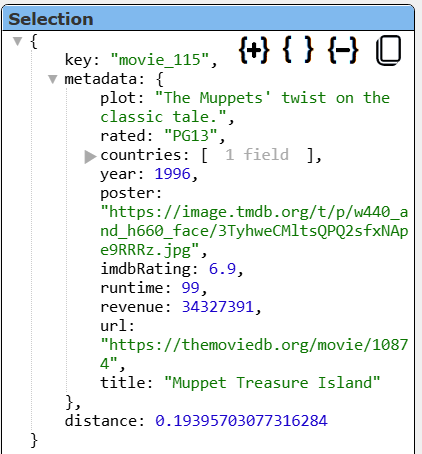
Unlike the strictly columnar result rows found in SQL databases, the resulting objects are returned as nested JSON objects. In this example there are first level fields of keys, metadata, and distance. The “key” field is the S3 Vectors’ object identifier.
General Querying
The primary query specification options are described below.
| Field | Description |
|---|---|
| vectorBucketName | The name of the S3 Vectors bucket to access. |
| indexName | The name of the index to query. |
| queryVector | The embedding value in “[...]” or “{float32: [...] }” format. S3 Vectors currently only supports float32 values. Qarbine automatically converts any queryVector value which is an array of numbers into “{float32: [...] }” format. |
| filter | The filter specification. See below for more details. |
| topK | The maximum number of matches to return. It is similar to a SQL LIMIT clause. The default is 30. |
| returnProperties | Which properties of the object to return in the answer set. This can be used to reduce the answer set size provided by S3 Vectors. Specify the metadata fields wanted. If you want the distance then include that in the list. If you want the underlying vector then include ‘data’ in the list. |
| returnMetadata | A boolean indicating whether to return any metadata. The default is true. |
| returnData | Boolean indicating if the row vectors should be included in the answer set. The default is false to reduce the answer set size. |
Fetching Specific Keys
To retrieve specific objects based on keys use these options.
| Field | Description |
|---|---|
| vectorBucketName | The name of the S3 Vectors bucket to access. |
| indexName | The name of the index to query. |
| keys | The list of vector keys. |
| returnProperties | Which properties of the object to return in the answer set. See above for more details. |
| returnMetadata | A boolean indicating whether to return any metadata. The default is true. |
| returnData | Boolean indicating if the row vectors should be included in the answer set. The default is false to reduce the answer set size. |
Managing Answer Set Shape
The main Data Source Designer guide provides details on using Qarbine pragma to manipulate answer row shapes. For example, the query specification
{
vectorBucketName: 'media-entertainment',
indexName:"movies",
queryVector: {float32: [! sampleEmbeddings('funny')  !] },
topK: 10,
returnDistance: true,
returnMetadata: true,
}
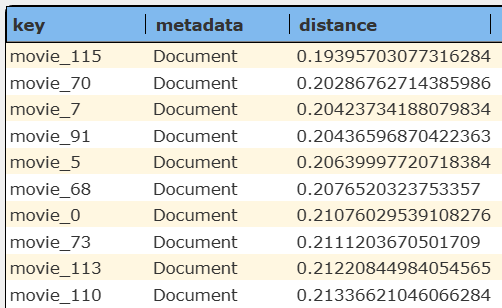
returns this answer set.
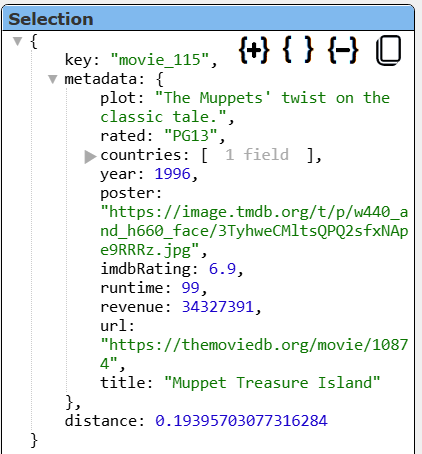
A sample movie row looks like the following
Adding a Qarbine pragma
#pragma pullFieldsUp metadata
{
vectorBucketName: 'media-entertainment',
indexName:"movies",
queryVector: {float32: [! sampleEmbeddings('funny')  !] },
topK: 10,
returnDistance: true,
returnMetadata: true,
}
results in an easier answer set to review as shown below in 2 half snippets.
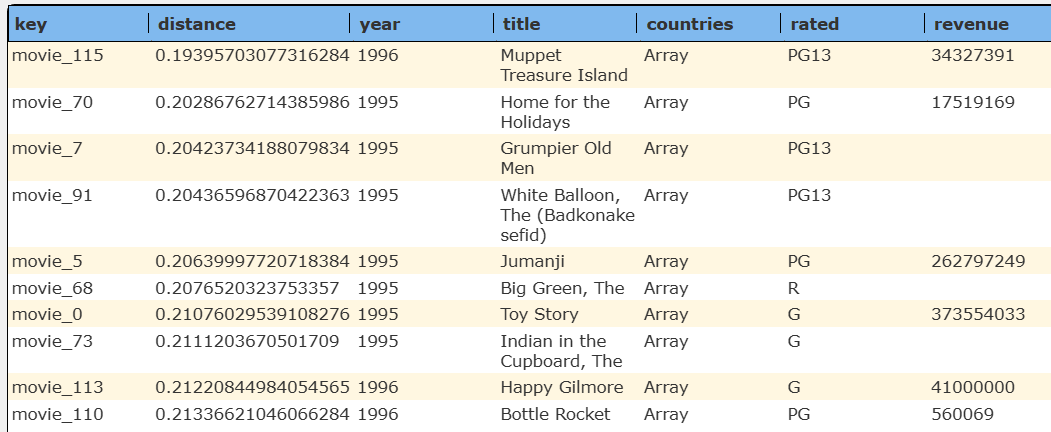
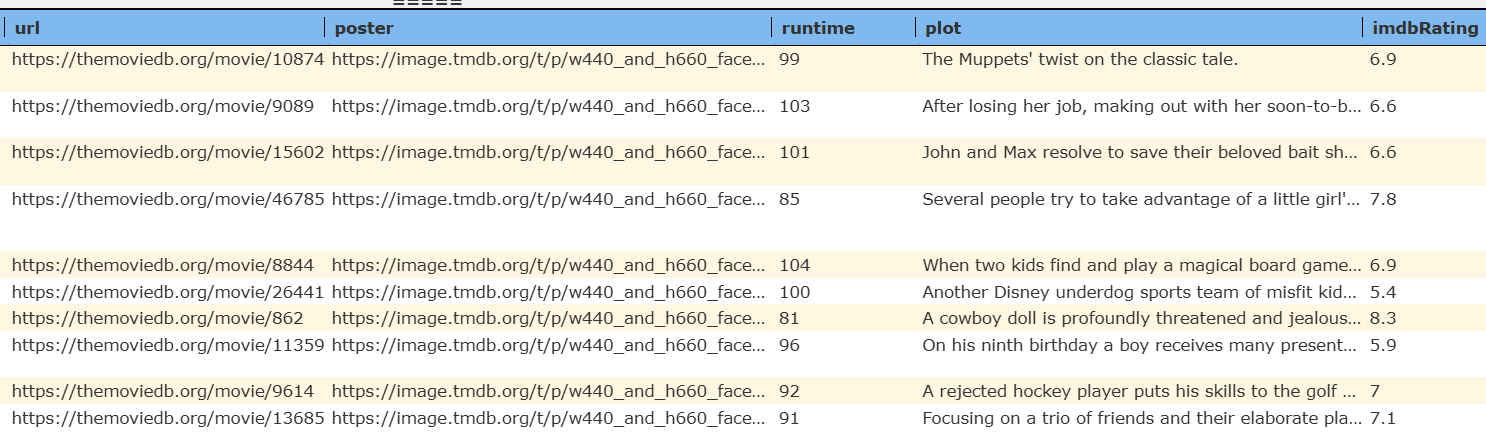
Accessing the row fields and using the row files within formulas is also much easier without the added ‘metadata’ object level.
Managing Answer Set Size
AWS S3 Vectors does impose rules for providing a maximum number of matches to return. See the documentation for the latest details. If a topK (AKA “limit”) is not set in the query specification, then the data source’s maximum objects setting is applied.
The default maximum number of rows starts off at 25 for a new data source. This is useful to evolve a query from a concept to one that you have verified returns the desired answer set. As noted, any native way of limiting an answer set size is the preferred approach. This setting is in the component dialog as shown below and also accessible by clicking the ‘Gear’ icon.
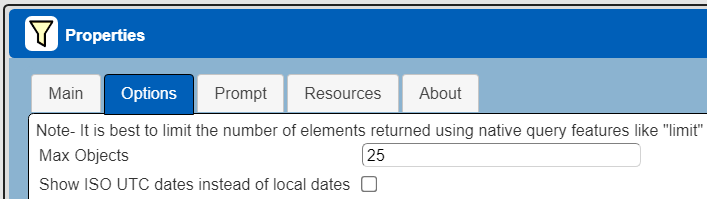
Once you are done drafting you can adjust this parameter. A “0” indicates there is no maximum. A number greater than 0 indicates to limit the final answer set size to that number of rows. This answer set truncation comes after any native query limit. So, if the answer set from the data endpoint is quite large or timeconsuming to create, that content has to be returned to the Qarbine host. It then may truncate the number of rows. It is best to truncate at the query level (i.e., use topK: or SQL LIMIT) to reduce the content sent from the data endpoint to the Qarbine host in the first place.
Adjusting the Maximum Rows
Recall the default maximum rows at the component level is 25. When you are satisfied with your query you can change that setting by clicking.

Adjust the setting to “0” indicating no Qarbine answer set truncation.

Click

“Similarity” Strategies
When using AWS S3 Vectors to perform similarity searches, the service returns a list of nearest neighbors based on your query vector. Each result can optionally include a ‘distance’ value, which quantifies how similar the result is to your query (lower values generally mean more similar). If you want to only return results that are “not too far” (i.e., only sufficiently similar content), thre is no S3 Vectors API option for this metric- only the topK setting which is independent of distance.
Qarbine pragmas can be used to filter the S3 Vectors answer set based on its criteria including the distance value. Consider this query specification
select *, distance
from 'media-entertainment.movies'
where nearText("funny", 'myOpenAI')
limit 20
It returns these 20 rows.
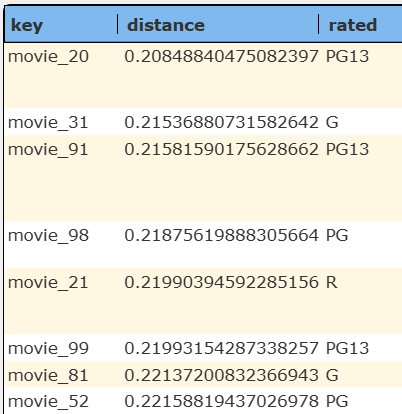 | 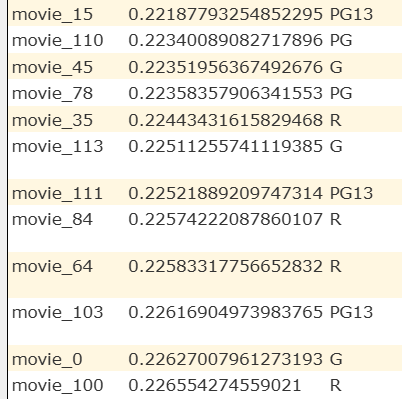 |
To apply a secondary distance filter use the runPostQuery pragma as shown below.
#pragma runPostQuery select * from data where distance < 0.222
select *, distance
from 'media-entertainment.movies'
where nearText("funny", 'myOpenAI')
limit 20
The “data” in the pragma line references to a virtual answer set and does not have anything to do with S3 Vectors row’s “data” field.
The answer set is shown below.
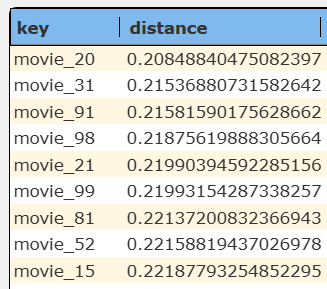
Max_distance is a threshold you set to decide which vector search results are “close enough” to your query to be considered relevant. Determining the ideal value for max_distance in AWS S3 Vectors requires both an understanding of your chosen distance metric (Cosine or Euclidean) and testing with your specific dataset and use case.
Cosine distance usually yields values between 0 (identical) and 2 (opposite); typical “similar” matches have cosine distance much closer to 0. Whereas Euclidean distance scales with the number of vector dimensions and value magnitudes; smaller values indicate greater similarity.
The optimal values depend on your embedding model, the diversity in your dataset, and how “similar” you want returned matches to be. It is an iterative process of reviewing the result details and sometimes using visualizations as well.
Date and Time Handling
The section above note the use of Qarbine pragma to manipulate answer set shape. The main Data Source Designer guide lists the various pragmas available. Of particular interest for S3 Vectors is the convertToDate pragma because metadata dates are not supported.
Date oriented values can be stored as numbers (seconds or milliseconds since epoch) or perhaps as ISO formatted strings. The downstream analysis likely wants genuine date objects though for formula use and presentation formatting. Consider a movie object such as
{
key: "movie_115",
metadata: {
title: "The Summer Dayz",
releaseDate : 1579046400000, ← January 15, 2020
…
  }
}
Using this sequence of pragmas
#pragma pullFieldsUp metadata  ← Not needed when using S3VectorsSQL
#pragma convertToDate releaseDate
the resulting object would look like
key: "movie_115",
title: "The Summer Dayz",
releaseDate : a JavaScript Date with January 15, 2020 UTC
…
 }
Dynamic Embedding Prerequisites
Prior to using Qarbine’s embeddings(...) macro function or the SQL-like query function nearText(...), the Qarbine Administrator must first configure “AI Assistant(s)”. The AI Assistants provide access to various popular Generative AI services and are referenced using an alias. Check with your Qarbine administrator for which ones are available and their proper use. For example, when using dynamic query vector embeddings, the model used by the AI Assistant must be compatible with the one used to generate the original embedding values in the database.
Filtering Vectors
S3 Vectors filtering is similar to SQL WHERE clauses in concept, but not at all in syntax! You can attach metadata (for example, year, author, genre, and location) as key-value pairs to your vectors. Nesting provides AND and OR logic as well. By default, all metadata is filterable unless you explicitly specify it as non-filterable. You can use filterable metadata to filter your query results based on specific attributes, enhancing the relevance of your queries. Vector indexes support string, number, boolean, and list types of metadata.
For more information see
https://docs.aws.amazon.com/AmazonS3/latest/userguide/s3-vectors-metadata-filtering.html.
Here is the information formatted as a basic table:
| Operator | Value Type | Description |
|---|---|---|
| $eq | String, Number, Boolean | Exact match comparison for single values. When comparing with an array metadata value, returns true if the input value matches any element in the array. For example, {"category": {"$eq": "documentary"}} would match a vector with metadata "category": ["documentary", "romance"]. |
| $ne | String, Number, Boolean | Not equal comparison |
| $gt | Number | Greater than comparison |
| $gte | Number | Greater than or equal comparison |
| $lt | Number | Less than comparison |
| $lte | Number | Less than or equal comparison |
| $in | Non-empty array of primitives | Match any value in array |
| $nin | Non-empty array of primitives | Match none of the values in array |
| $exists | Boolean | Check if field exists |
| $and | Non-empty array of filters | Logical AND of multiple conditions |
| $or | Non-empty array of filters | Logical OR of multiple conditions |
The filtering syntax uses a JSON-based structure resembling many NoSQL filtering. Some examples are:
{"genre": "documentary"}
{"genre": {"$eq": "documentary"} }
{"year": {"$gt": 2019} }
{"$and": [ {"category": "technology"}, {"version": {"$gte": "1.0"} } ] }
{"$or": [ {"genre": "drama"}, {"year": {"$gte": 2020} } ] }
As you can see, the standard S3 Vectors filtering syntax can be a bit verbose. Below is an example of a query specification using a filter.
{
vectorBucketName: 'media-entertainment',
indexName: "movies",
queryVector: {float32: [! sampleEmbeddings('funny')  !] },
topK: 10,
returnDistance: true,
returnMetadata: true,
filter: {"year": {"$gte": 1996 } }
}
A more complex filter argument is
{"$and": [ {"rated": {"$eq": "PG13"}} , {"year": {"$gte": 1996} } ] }
Qarbine SQL Oriented Querying (S3VectorsSQL)
Overview
Recall that S3 Vectors supports semantic (i.e. vector) search and a lexical (i.e. scalar/matching) search. The use of the raw filter syntax can be a bit verbose and cumbersome though. To improve readability and productivity when authoring retrievals, Qarbine provides a SQL oriented option. For example, the goal to retrieve up to 3 movies that have some similarity to “dracula” can look like the following using a query specification.
{
vectorBucketName: 'media-entertainment',
indexName: "movies",
"topK": 3,
"nearText":  "dracula"
}
The Qarbine SQL equivalent is simply
SELECT *
FROM movies
WHERE nearText("dracula") limit 3
Qarbine’s S3 Vectors integration goes much further though and extends to the filtering features as well. S3 Vectors still requires a JSON filter specification but Qarbine is your co-pilot translating SQL-oriented queries into their S3 Vectors equivalents. Adjusting our movie retrieval specification above and adding criteria for the movies to have a year at least of 1996 would be
SELECT *
FROM movies
WHERE nearText("dracula") and year >= 1996 limit 3
The JSON filter equivalent is much more verbose and cumbersome to define. Qarbine allows you to avoid this frustration in many cases. You can always use the JSON structure though at any time.
When SQL is used the following pragma is automatically enabled
#pragma pullFieldsUp metadata
In some cases the Qarbine Data Source will have literally just the SQL statement above and nothing more. There are techniques to blend the ease of using SQL along with the powerful features of S3 Vectors within a Qarbine JSON specification object. The table below lists the fields that drive this definition.
| JSON Field | Description |
|---|---|
| sql | The SQL statement can affect all of the options listed above. |
| sqlWhere | The string can affect the filter and queryVector arguments. |
Here is a simple example of combining the SQL and query specification approaches. The effective result is the same as the example query specification above.
{
"sql": "select * from movies limit 3",
"nearText": "dracula"
}
Note that a SQL numeric list is enclosed in parentheses while one in the specification is enclosed in brackets. That is a subtle nuance across the SQL and JSON syntax standards.
SQL Clauses
The mapping of the standard SQL clauses to their S3 Vectors equivalents is described below.
| Clause | Description |
|---|---|
| SELECT | The names of the fields to return. Specifying “*” indicates all object fields . This does not set the returnProperties field in which case S3 Vectors returns all of the properties. You can also reference metadata properties. This list of strings is passed as the returnProperties value. Here are some examples. SELECT * … SELECT title, rated … SELECT title, rated, plot, distance … SELECT *,data … Including “data” in the SELECT list sets the returnData field of the query specification to true. Including “distance” sets the returnDistance field to true. Note to reference the key column enclose it in single quotes. |
| FROM | The name of the index. This value sets the “indexName” field in the query specification. If the Qarbine data service does not have a specific bucket set, then use the “bucket.index” syntax for the SQL table reference. This sets both the vectorBucketName and indexName in the query specification. |
| WHERE | See the discussion below. The effect is to mainly set the “filter” field of the query specification. |
| ORDER BY | This clause is not consumable by S3 Vectors. S3 Vectors always returns results in closes distance order. To apply any other sort, use Qarbine pragmas as discussed in the main Data Source Designer guide. |
| LIMIT | Indicates at most how many elements to return. This sets the “topK” field of the query specification. |
Bear in mind that some combinations of query fields may not make sense in the S3 Vectors world.
SQL Functions
There is no filter value in the query specification. Some additional Qarbine defined SQL functions are listed below.
nearText(aPhrase [,anAlias] )
nearVector(number1, number n …)
vector = (number 1, number n ...)  ← A different way of expressing nearVector()
data = (number 1, number n ...)  ← The other column alias
Qarbine automatically converts any queryVector value which is an array of numbers into “{float32: [...] }” format.
The WHERE clause criteria can be in a variety of traditional SQL forms and may include Qarbine specific functions described below.
| Function | Description |
|---|---|
| nearVector | This clause is removed from the WHERE criteria and its list of numbers are set into the “queryVector” field of the query specification. |
| keyIn | This clause is removed from the WHERE criteria and its list of keys are set into the “keys” field of the query specification. |
| nearText | This clause is removed from the WHERE criteria and its argument set into the “nearText” field of the query specification. |
| withOption | Pass in the specification field name and the value to set. This clause is removed from the WHERE clause. See the section below for more details. |
| withOptions | Set several specification fields at once. The format is withOptions(key1, value1, keyN, valueN) The key argument may use dot notation when setting the inner value of a component object. See the section below for more details. |
An SQL example is
SELECT *
FROM movies
WHERE nearText("dracula")
This results in a query specification with these fields
indexName: "movies",
nearText: "dracula"
The nearText value will be used with a Qarbine AI Assistant to obtain an embedding which is then used as the queryVector value. The default AI Assistant will be used in this case. To use a specific one thenadd a 2nd argument to nearText as shown below.
SELECT *
FROM movies
WHERE nearText("dracula", “myAiAssistantAlias”)
A more constraining query from our initial one is
SELECT *
FROM movies
WHERE nearText("dracula") and rated = "PG"
The above references the rated property as a SQL column. The equivalent specification is
 {
   "vectorBucketName": "media-entertainment",
   "indexName": "movies",
   "filter": {  "rated": "PG" },
   "returnMetadata": true,
   "returnDistance": true,
   "nearText": "dracula"
 }
Here is a query to return all the properties and the embedding data as well.
SELECT *, data
FROM movies
LIMIT 2
Compound WHERE Clause Criteria
Compound criteria is permitted. For example, this SQL
SELECT *, data
FROM movies
WHERE
withOption('returnDistance', false)
and runtime < 120
and rated = 'R'
and nearVector (...)
generates this underlying query specification
{
vectorBucketName: "media-entertainment",
indexName: "movies",
filter: {
$and: [
{ runtime: { $lt: 120 } },
{rated: "R"}
]
- },
returnMetadata: true,
returnDistance: false,
returnData: true,
queryVector: [...],
topK: 30
}
Retrieving a Specific Vector
With AWS S3 Vectors, you cannot directly retrieve a vector's full data by searching for an exact match of its vector values. Instead, you retrieve vectors by running a similarity search: you submit a query vector, and the system returns the top K most similar vectors (based on cosine or Euclidean distance), possibly with their data, distance scores, and metadata if requested.
The query specification would be
{
vectorBucketName: 'media-entertainment',
indexName: "movies",
queryVector: [...],
topK: 1,
returnDistance: true,
returnMetadata: true,
}
The SQL equivalent would be
SELECT * FROM movies WHERE vector = (...)
or using the other column alias
SELECT * FROM movies WHERE data = (...)
Specify a LIMIT clause to retrieve objects near the given vector. Otherwise an implied “LIMIT 1” will be set into the query specification. For the former, the nearVector() function is semantically better.
Retrieving Specific Keys
The SQL statement’s WHERE clause may refer to one or more specific keys. Only equality checking is allowed. The snippet
"key" = 'movie_11'
is effectively
keyIn('movie_11')
The snippet
"key" = 'movie_11' OR "key" = 'movie_70'
is effectively
keyIn('movie_11', 'movie_70')
All ‘"key" = XX’ snippets are processed as an additional keyIn value no matter the conjunction (OR vs. AND). Notice the double quotes around the "key” to avoid a keyword conflict.
Setting Other Query Property Fields
These WHERE clause functions provide a way to set query specification properties which do not map well to the nature of SQL but satisfy the syntax of SQL. The function are:
withOption(name, value);
withOptions(name1, value1, nameN, valueN);
Here is an example
withOption('returnDistance', false)
If the value is a string which looks like a JSON object (starts with “[“ or “{“) then a conversion will be made to determine the value prior to setting the property in the query specification.
Reviewing the Generated Specification
You can enter criteria of the form “EXPLAIN SELECT ….” to have the SQL statement processed and have the returned answer set be the underlying query specification. For example enter and run
explain
SELECT * FROM movies
WHERE year >= 1995
LIMIT 10
Select the single result element and its details are shown to the right. Click the “+” to expand all of the JSON object fields.
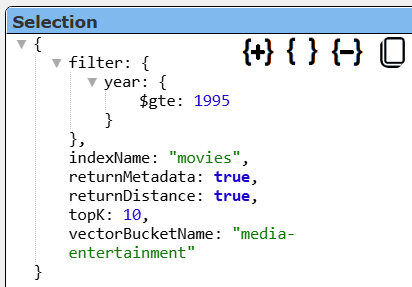
A convenient way of specifying this is to have “explain” on the first line and the rest of your SQL on the next lines.
explain
SELECT * from movies
WHERE year >= 1995
LIMIT 10
Then simply “comment out” the first line when not in use
// explain
SELECT * from movies
WHERE year >= 1995
LIMIT 10
You can also use “explain: true” in the JSON query specification for similar information.
Another way to get the specification is to press ALT and click  . For the query
SELECT * from movies
WHERE year >= 1995
LIMIT 10
the result is shown below.
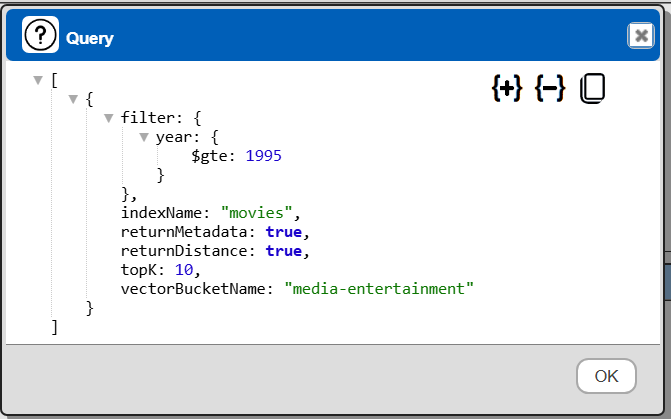
Any “explain SELECT” or “explain: true” takes precedence over the ALT-click interaction.
Qarbine Virtual Queries
There are a few convenience queries which are mainly DBA oriented. These queries are recognized by the Qarbine driver and provide common database information. Any bucket set in the data service definition constrains what is returned. For example, if a bucket (generically a “database”) is given in the data service, then only objects in that one bucket are returned.
These virtual query defaults are independent of whatever drop down option is chosen in the Data Source Designer tool. If a specific schema’s information is wanted for example, it must be explicitly given.
| Query | Description |
|---|---|
| list buckets | Return a list of visible vector buckets. |
| describe buckets | Return the details of all the visible buckets. |
| describe bucket BUCKET | Return the details of the given bucket. |
| list indexes [BUCKET] | Return a list of indexes. The optional argument may be a bucket name. |
| describe indexes [BUCKET] | Provide details on all of the indexes. This may take a while depending on your bucket structure. |
| describe index INDEX | Provide details on the given index. |
References
More information on S3 Vectors can be found at https://aws.amazon.com/s3/features/vectors/ and https://docs.aws.amazon.com/AmazonS3/latest/userguide/s3-vectors.html.